Basic functions
| A | B | C | |
|---|---|---|---|
| 1 | First Name | Last Name | Points |
| 2 | Jill | Smith | |
| 3 | Eve | Jackson | |
| 4 | Adam | Johnson | |
| 5 | Total Points | 68 | |
| 6 | Average | 22.67 | |
| 7 | Max | 32 |
The spreadsheet above performs 3 calculations. As each player's points is updated, the total, average and maximum number updates automatically. This is because cells C5, C6 and C7 contain basic functions. For example, cell C5 contains
= sum(c2:c4)
where sum() is the function and c2:c4 is the range of cells used by the function to produce a result.
*note: the function starts with an equals sign!
Task
If you are using Google Sheets, use this sheet.
If you require a csv file to get started, download this one.
Follow these instructions to develop the spreadsheet model:
Make sure all data in your spreadsheet model is visible.

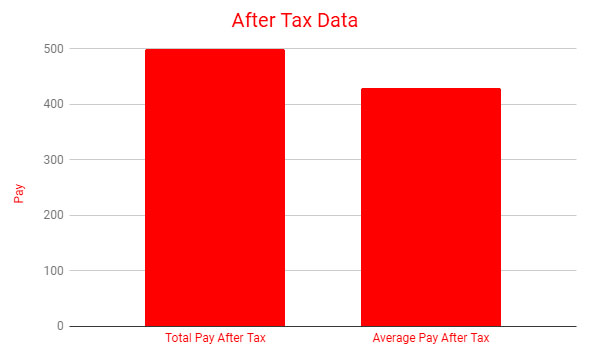
Reproduce this chart. Note: your data will be different but the chart title and color, axis titles and color and bar colors should be the same.
Submit your final spreadsheet file as instructed. BEWARE of saving your work in a CSV file - all of your formatting, functions and chart will be lost!!
Extension activity
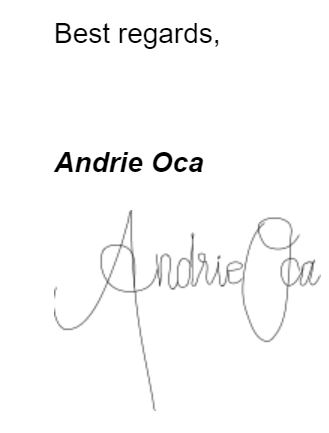
This letter needs to be completed by you.
Read it carefully and see if you can figure out what needs to be done.
You will need to create an image of your signature. Choose whatever software application you like to do this eg MS Paint, or an online drawing tool.
document specification
- orientation: landscape
- text: justified, size 14, double line spacing
- today's date: italic
- your name: bold, italic
Food For Thought
Popular spreadsheet software has functions that we can use to help us do calculations. sum, count, counta, max, min are all common functions. Remember to start with = and make sure you know what the range is!


Homework
Tags
spreadsheet data csv model merge insert row format currency column range decimal places cell reference