String functions
| A | B | C | D | E | F | |
|---|---|---|---|---|---|---|
| 1 | id | Pet Name | Age (months) | Owner | Date | Sickness |
| 2 | cat-212 | Harold | 8 | Jessie Lee | 12 Jan | Flu |
| 3 | dog-412 | Kolt | 4 | Flo Werner | 13 Jan | Vomiting |
| 4 | dog-200 | Mercy | 14 | Pat Xu | 13 Jan | Eye rash |
| 5 | dog-132 | Bushman | 3 | Jerzy Dudek | 14 Jan | Eye infection |
| 6 | cat-212 | Harold | 8 | Jessie Lee | 14 Jan | Flu |
A dog-and-cat vet uses a spreadsheet to log visits by sick animals.
She just enters the id of the animal and a lookup table fills in the Name, Age and Owner.
The problem is she wants the software to automatically count the number of cats and the number of dogs. With a few rows of data, it's easy to count them.
However, what if there were many rows of data? It would be time-consuming to count and the risk of human error increases. If only we could count when the id starts with cat or dog.
Common spreadsheet applications have a wide set of functions to process text data. Text data in computer applications are often referred to as Strings. So, we need to figure out how to use String functions in spreadsheets.
Let's create a new column between Column A and Column B:
| A | B | C | D | E | F | F | |
|---|---|---|---|---|---|---|---|
| 1 | id | Pet Type | Pet Name | Age (months) | Owner | Date | Sickness |
| 2 | cat-212 | Harold | 8 | Jessie Lee | 12 Jan | Flu | |
| 3 | dog-412 | Kolt | 4 | Flo Werner | 13 Jan | Vomiting | |
| 4 | dog-200 | Mercy | 14 | Pat Xu | 13 Jan | Eye rash | |
| 5 | dog-132 | Bushman | 3 | Jerzy Dudek | 14 Jan | Eye infection | |
| 6 | cat-212 | Harold | 8 | Jessie Lee | 14 Jan | Flu |
In cell B2, let's use a String function. We are going to slice the first 3 characters from the left side of the string in cell A2
=left(A2, 3)
We can now copy down the formula into the other cells in column B. Somewhere else in the spreadsheet we can use countif to create summary data and charts.
Task
If you are using Google Sheets, use this sheet.
If you require a csv file to get started, download this one and this one.
Follow these instructions to develop the spreadsheet model:
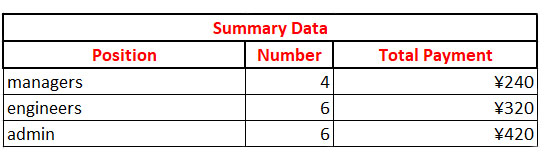
Make sure all data in your spreadsheet model is visible.

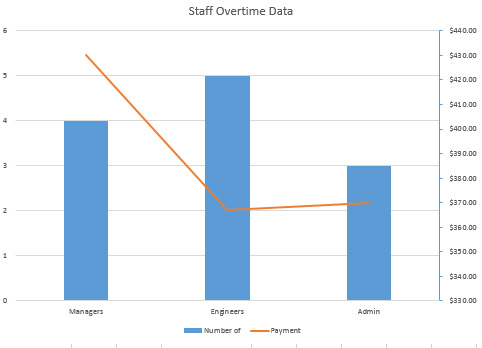
Reproduce this chart. Note: can you figure out how to format the axes, the primary and secondary?
Submit your final spreadsheet file as instructed. BEWARE of saving your work in a CSV file - all of your formatting, functions and chart will be lost!!
Food For Thought
Common spreadsheet software has functions to help us grab slices of a string. As we will discover more, this is extremely handy!



Homework
Tags
spreadsheet data csv model merge insert row format currency column range decimal places cell reference