| A | B | C | D | E | |
|---|---|---|---|---|---|
| 1 | Code | Item | Price | Quantity | Total cost |
| 2 | Orange juice | $6.99 | $6.99 | ||
| 3 | Chocolate bar | $2.99 | $2.99 | ||
| 4 | Orange juice | $6.99 | $6.99 | ||
| 5 | Honey Tea | $4.50 | $4.50 | ||
| 6 | Coffee | $8.25 | $8.25 | ||
| 7 | Orange juice | $6.99 | $6.99 | ||
| 8 | Earl Gray Tea | $8.75 | $8.25 | ||
| 9 | Orange juice | $6.99 | $6.99 | ||
| 10 | |||||
| 11 | Total | $51.95 |
Check out the smart spreadsheet! You can enter an item code and change the quantity and the spreadsheet updates itself!
But what happens if you enter an invalid code eg #$%@? Try it. Everything gets messed up. The data being entered is invalid - it doesn't relate to the purpose of the cell or the spreadsheet in general.
Software specialists who design spreadsheet models have to be aware that normal users - eg office workers - are human and are likely to make mistakes.
We need to force the user to enter valid data only.
Software specialists who design spreadsheet models are familiar with some powerful data validation techniques. One of them is in the spreadsheet above. Can you find it?
We can create drop-down boxes to force users to select only valid data as shown above.
We can also create rules that will force the spreadsheet software to alert a user if invalid data entry is attempted.
For example, how old are you?
The above example uses a data validation rule: if the number entered is outside the range 14:18, force the user to re-enter.
Task
If you are using Google Sheets, use this sheet.
If you require a csv file to get started, download this one.
Follow these instructions to develop the spreadsheet model:
Note: there are different ways to solve this problem but only 1 way is super efficient!
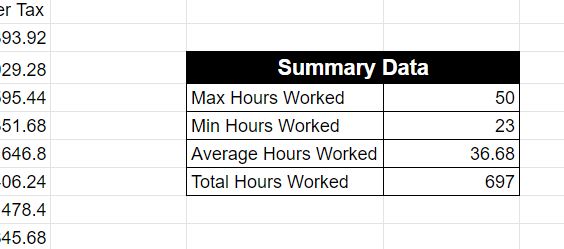
Note the average is formatted to 2 decimal places.
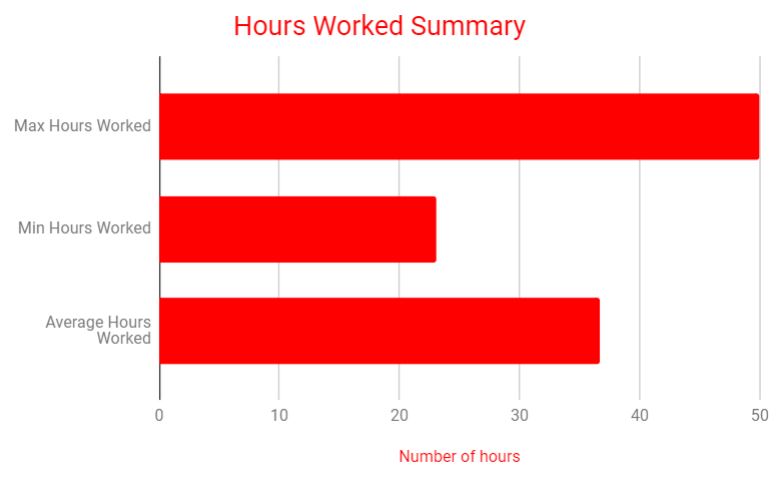
Food For Thought
Data Validation techniques are a fundamental part of Spreadsheet Model Design. In today's lesson, you designed a model without caring about the exact information that the spreadsheet needs to store. You are the designer, not the user. Hopefully the user will be happy with your design and will be able to use the model effectively.


Homework
Tags
spreadsheet data csv model merge insert row format currency column range decimal places cell reference