
Digital Illustration
Focus 2 - Anchor Points
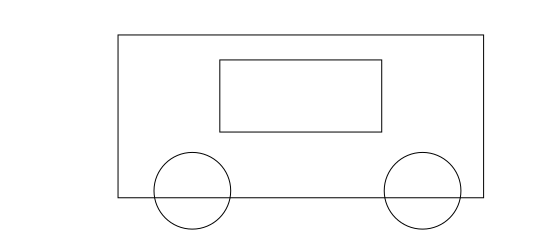

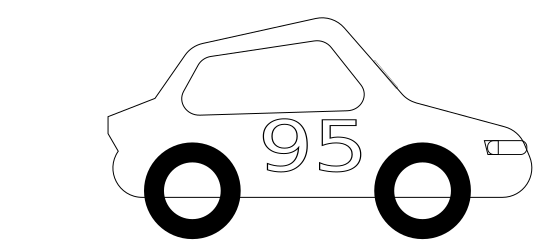
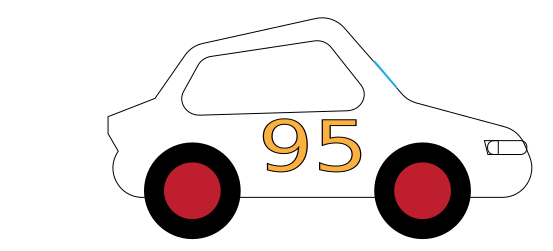
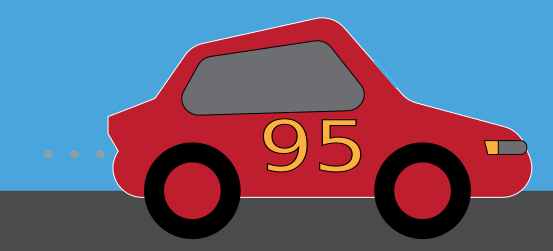
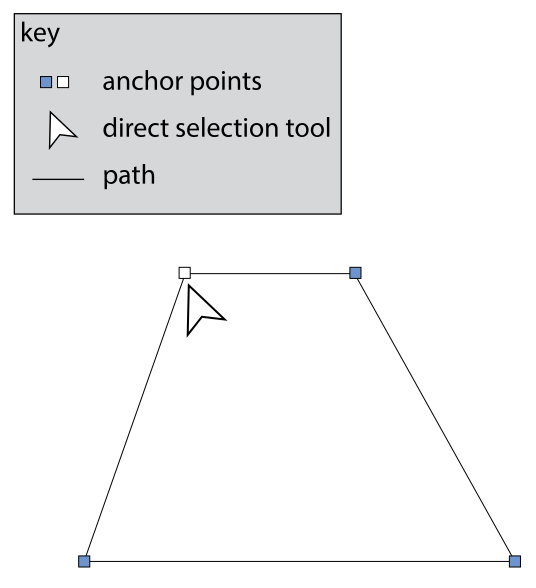
Shapes in Illustrator are composed of paths and anchor points. Using the direct selection tool, we can play with the anchor points, changing the shape of the shape!
We can also add and delete anchor points on a shape.
This short tutorial will introduce you to this concept.
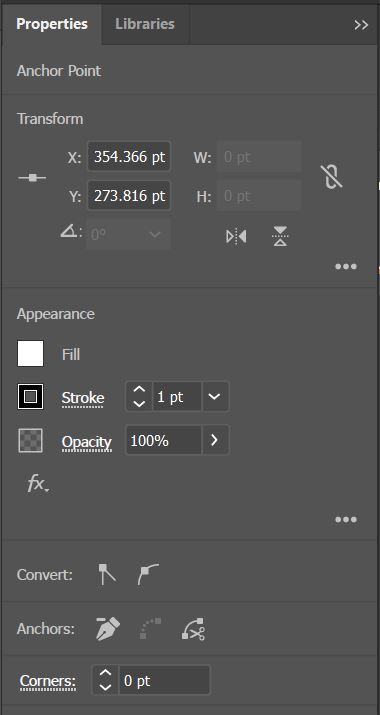
Note: as you work with anchor points, it is useful to be aware of the Properties panel which has lots of useful options such as convert and appearance.
Getting started
Follow the steps below and let's make a cool illustrated car. Be creative - you can use your own colors and designs.
1. Get organised
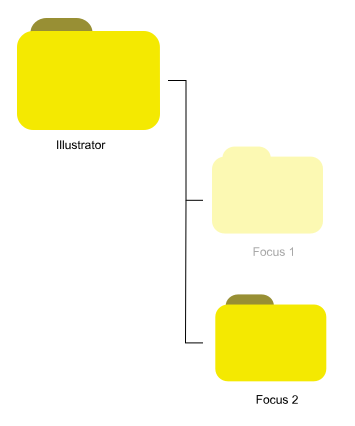
So, first, let's set up a project folder for Focus 2. Create the following folder structure:
2. Open Adobe Illustrator and complete this short video tutorial.
3. Your vehicle
Design your vehicle. It doesn't have to be a car.
It could be a tractor or a school bus.
The key point is to develop shapes by adding anchor points and manipulating them with the direct selection tool (white arrow).
4. The scene
If you have time, ask yourself where is my vehicle? and design a scene. Keep using your skills and exploring Illustrator's tools and effects.
3. File Formats
When you save an Adobe Illustrator project file, the format is .ai
Another option is .svg
Save your project file.
Let's also save the image so that we can post it onto social media or email it to somebody so that they can look at it.
Export the image in jpg format and save the image as car.jpg in your project folder.
SUBMISSION
Submit your project folder as instructed by your tutor.
Tags
path anchor point illustrate shape illustration color illustrator software digital application image professional properties convert