
Layers, Selection Tools and Clipping Masks
basic tools
In today's lesson we will do a few basic things:
- Open Photoshop.
- Open 2 images in Photoshop.
- Create a composition with 2 named layers.
- Use selection tools to edit the content of the layers.
- Use selection tools to create a new layer.
We will also do one tricky thing:
- understand how to use clipping masks.
1. Getting organised
Create a new folder on your computer called Photoshop.
Create a subfolder called Tom Cruise.
Save these 2 images in your Tom Cruise folder.


Your project environment should now look like:

2. Opening images in Photoshop
Open Photoshop and see if you can figure out how to open the 2 images in Photoshop.
3. Video Tutorial #1
You are now ready to attempt today's video tutorial. It is about 10 minutes long.
By the end of it you should understand the importance of layers, some basic selection tools and how to use adjustment layers and clipping masks!
Don't be intimidated. Stay focused. Try hard!
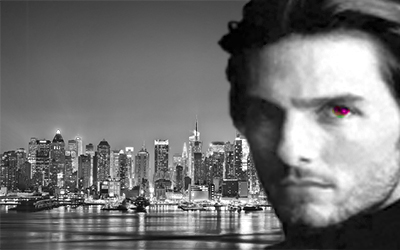
By the end of the tutorial you should have something like this:
4. Useful shortcuts
| shortcut | description |
|---|---|
| ctrl t | resize/rotate an image. t stands for transform |
| ctrl alt z | undo |
| ctrl d | deselect a selection |
| ctrl + | zoom in |
| ctrl - | zoom out |
| ctrl 0 | resize and center to fit window |
| [ | make a brush size (including eraser) bigger |
| ] | make a brush size (including eraser) smaller |
5. Submission
Save your current project as cruise-1.psd
Upload it to your Google Drive Photoshop folder